Generate Text
Using AI to generate text is an exciting and enormously useful feature. To get started, just:
- Click on the Generate Text tab.
- Type in some instructions.
- Click on the Generate Text Button.
Let's start with a very simple example. In the previous section, we typed in the words "bananas oranges grapes avocados" and had them broken into syllables. With the Generate Text function, we can instruct the AI to pick the words for us.
A reasonable prompt might be:
Prompt
Create a list of four fruits. Make sure at least three of them have more than one syllable.
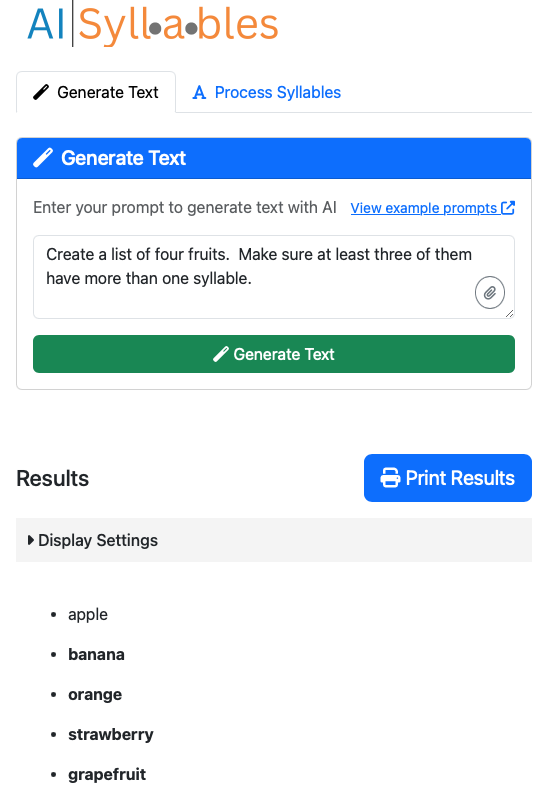
I asked the system for at least four fruits and it gave me five. They all have more than one syllable when I asked for at least three to have more than on syllable. So the system gave me what I asked for.
It is important to note that if I run the exact same command again, I might get a different answer. It also important to understand that AI can make mistakes. It is possible something in the list will not be a fruit.
The answer is fine, except what I really want is a sheet I can give to students to study. So I want something like this:
the word the word broken into syllables the definition of the word the word used in a sentance
I can ask the system for exactly that with a prompt like:
Prompt
Create a list of four fruits. Make sure at least three of them have more than one syllable. Print the word on the first line. Then print the word broken into syllables on the next line. Then print the definition of the word on the next line. Then use the word in a sentence. Leave an extra blank line between each entry.
Note that the previous prompt is still entered in the text box, so I can append the new part to it.
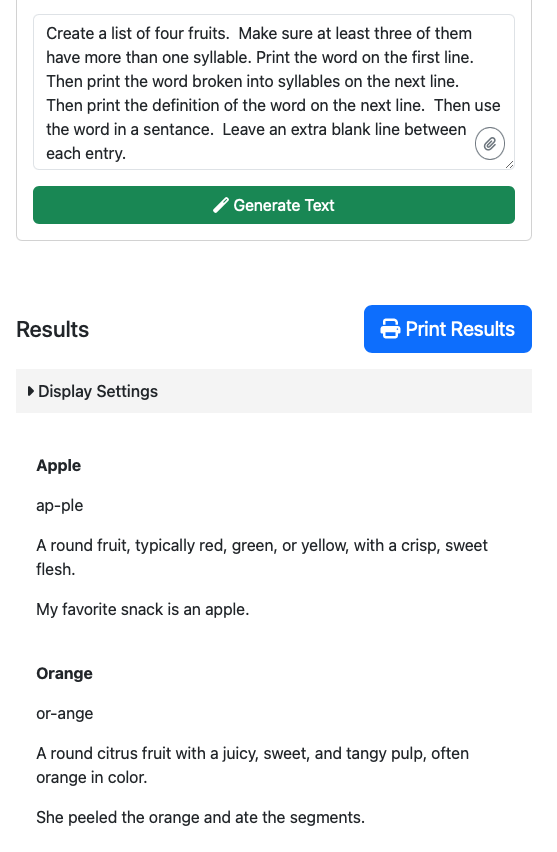
That looks good, but there is no reason to capitalize a fruit and I prefer a solid line between the entries. Let's try adding this to the prompt:
Prompt
Put a horizontal rule between each entry. Do not capitalize the name of the fruit unless it is the first word in the sentence.
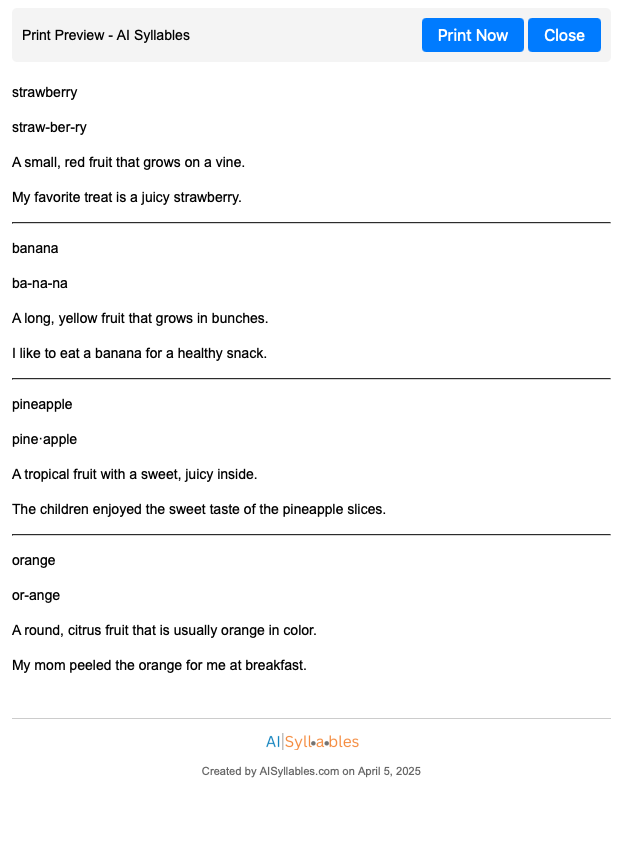
That looks much better. Now I can use the display settings controls to adjust the font size and spacing and have sometehing ready to print.
Click on the history button in the top right to view any previous prompts and easily refine them.

Be sure to check out some more advanced examples in the examples section. Or click on View Example Prompts to see more.